Atlantis Word Processor 1.6.6 is available for betatesting.
This version of Atlantis adds support for regular expressions to the "Find & Replace" feature.
You can find details on this new version of Atlantis on the Betatesting page.
Showing posts with label betatesting. Show all posts
Showing posts with label betatesting. Show all posts
Friday, October 11, 2013

Saturday, February 11, 2012
Release of Atlantis 1.6.5.9 (beta)
Atlantis Word Processor 1.6.5.9 is now available for betatesting.
It is a minor release with an improvement to the Save as eBook feature.
You can find details on this new version of Atlantis on the Betatesting page.
It is a minor release with an improvement to the Save as eBook feature.
You can find details on this new version of Atlantis on the Betatesting page.
Thursday, November 17, 2011
Release of Atlantis 1.6.5.8 (beta)
Atlantis Word Processor 1.6.5.8 is now available for betatesting.
This version of Atlantis has a number of important adjustments and improvements.
You can find details on this new version of Atlantis on the Betatesting page.
This version of Atlantis has a number of important adjustments and improvements.
You can find details on this new version of Atlantis on the Betatesting page.
Saturday, January 22, 2011
Release of Atlantis 1.6.5.4 (beta)
Atlantis Word Processor 1.6.5.4 is now available for betatesting.
Atlantis 1.6.5.4 is a maintenance release with a number of important fixes and improvements. It also includes a new Navigation tool.
You can find details on this new version of Atlantis on the Betatesting page.
Atlantis 1.6.5.4 is a maintenance release with a number of important fixes and improvements. It also includes a new Navigation tool.
You can find details on this new version of Atlantis on the Betatesting page.
Tuesday, October 12, 2010
Release of Atlantis 1.6.5.3 (beta)
Atlantis Word Processor 1.6.5.3 is now available for betatesting.
Atlantis 1.6.5.3 is a minor release with a new document viewing option "Hide white space". When a document is in the Print Layout view mode, you can now save screen space by hiding the blank areas at the top and bottom of each page, and the space between the pages.
You can find details on this new version of Atlantis on the Betatesting page.
Atlantis 1.6.5.3 is a minor release with a new document viewing option "Hide white space". When a document is in the Print Layout view mode, you can now save screen space by hiding the blank areas at the top and bottom of each page, and the space between the pages.
You can find details on this new version of Atlantis on the Betatesting page.
Thursday, July 22, 2010
Heading-less chapters (2)
When Atlantis saves a document as eBook, it divides it into chapters according to the Heading paragraphs found in that document. Each paragraph formatted as a Heading paragraph in the source document is interpreted as signaling a new chapter in the book.
Now quite often the first Heading paragraph of a source document is preceded by the book title, a cover picture, and at times by some other text. These are not actually part of any chapter of the book. For example, in the following screen capture, first a cover picture, then the book title ("Rembrandt Biography") and the author’s name ("by John Johnson") precede the first heading ("Childhood"):
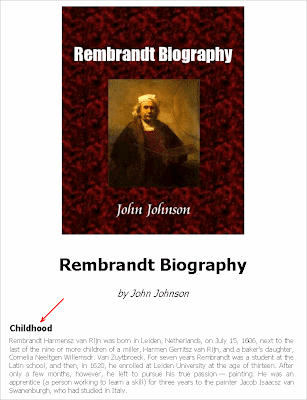
When you save this document as eBook in Atlantis, any text preceding the "Childhood" heading is normally saved as a separate first chapter of the eBook. Accordingly, Atlantis will automatically include a corresponding item in the eBook Table Of Contents. This extra item is always named by Atlantis as the eBook "Title page":
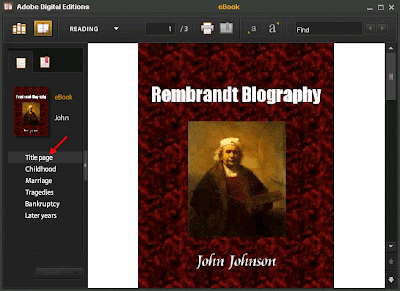
Clicking this "Title page" item in the Table Of Contents of an eBook always brings the reader to the first page of the eBook.
Until now there was no way to have a different name for that automatic eBook chapter. Atlantis always used "Title page" as an automatic hard-coded name. But you might prefer a different name. Or if you are writing a book in a language other than English, you might need that automatic item in the table of contents to be named according to that other language. This is easily done using the latest beta version of Atlantis Word Processor and its support for heading-less chapters. Through this new feature of the Save as eBook command of Atlantis, you can now easily instruct Atlantis to use a different name for the initial heading-less chapter of your eBook.
Here are step-by-step instructions:
1) In Atlantis, press Ctrl+Home to place the caret at the beginning of the source document, then press Enter to create a new blank paragraph at the beginning of the document.
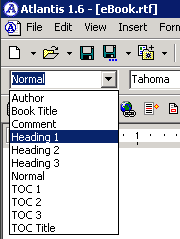
2) Choose the "Heading 1" style from the "Style" toolbar box of Atlantis to associate the first paragraph in the document with the "Heading 1" style:
3) Type the desired title for the initial chapter of your book within that first paragraph (for example, type "Cover Page"):

4) Select the first paragraph of the document with the keyboard or mouse (the fastest way to select a paragraph is by triple-clicking it):

5) Choose the "Format | Font..." menu command of Atlantis. Then check the "Strikeout" box:
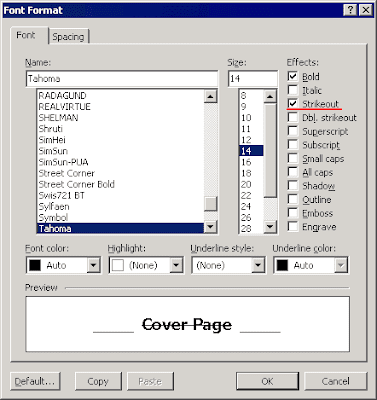
and OK out of the dialog. The first paragraph in the document will display with strikeout:

This is how you can tell Atlantis that the "Cover Page" heading text from the source document should not be included in the eBook text when you save this document as eBook. On the other hand, the eBook Table Of Contents will automatically include a first item with a "Cover Page" caption (actually the text struck out at the beginning of the source document):
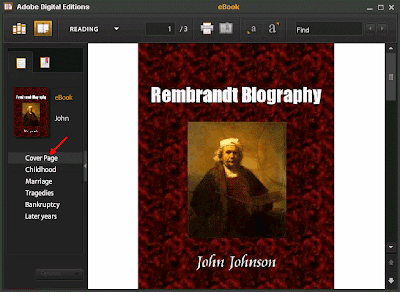
Now quite often the first Heading paragraph of a source document is preceded by the book title, a cover picture, and at times by some other text. These are not actually part of any chapter of the book. For example, in the following screen capture, first a cover picture, then the book title ("Rembrandt Biography") and the author’s name ("by John Johnson") precede the first heading ("Childhood"):

When you save this document as eBook in Atlantis, any text preceding the "Childhood" heading is normally saved as a separate first chapter of the eBook. Accordingly, Atlantis will automatically include a corresponding item in the eBook Table Of Contents. This extra item is always named by Atlantis as the eBook "Title page":

Clicking this "Title page" item in the Table Of Contents of an eBook always brings the reader to the first page of the eBook.
Until now there was no way to have a different name for that automatic eBook chapter. Atlantis always used "Title page" as an automatic hard-coded name. But you might prefer a different name. Or if you are writing a book in a language other than English, you might need that automatic item in the table of contents to be named according to that other language. This is easily done using the latest beta version of Atlantis Word Processor and its support for heading-less chapters. Through this new feature of the Save as eBook command of Atlantis, you can now easily instruct Atlantis to use a different name for the initial heading-less chapter of your eBook.
Here are step-by-step instructions:
1) In Atlantis, press Ctrl+Home to place the caret at the beginning of the source document, then press Enter to create a new blank paragraph at the beginning of the document.
2) Choose the "Heading 1" style from the "Style" toolbar box of Atlantis to associate the first paragraph in the document with the "Heading 1" style:

3) Type the desired title for the initial chapter of your book within that first paragraph (for example, type "Cover Page"):

4) Select the first paragraph of the document with the keyboard or mouse (the fastest way to select a paragraph is by triple-clicking it):

5) Choose the "Format | Font..." menu command of Atlantis. Then check the "Strikeout" box:

and OK out of the dialog. The first paragraph in the document will display with strikeout:

This is how you can tell Atlantis that the "Cover Page" heading text from the source document should not be included in the eBook text when you save this document as eBook. On the other hand, the eBook Table Of Contents will automatically include a first item with a "Cover Page" caption (actually the text struck out at the beginning of the source document):

Tuesday, July 6, 2010
Heading-less chapters
If you are using Atlantis Word Processor to create eBooks, you certainly know that the eBooks created from Atlantis in the EPUB format customarily display with a "standalone" table of contents (or "navigation center") allowing readers to switch between chapters:
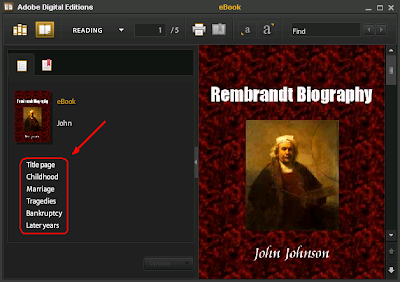
Adding items to these tables of contents is extremely easy in Atlantis. All you need to do is to format the chapter headings with the "Heading 1" style in the source document. When it creates a table of contents for an eBook, Atlantis automatically creates links (actually hyperlinks) to all the Heading style paragraphs present in the book.
This is OK for most ordinary purposes, but at times you might want a heading-less chapter from the source document to be included in the eBook table of contents. This might be the case, for example, with the copyright notice. Here is an example:
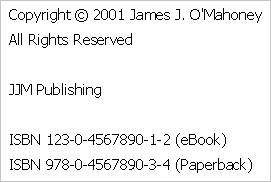
Click here to download a sample RTF document with the above copyright notice.
If you save this sample document as eBook in the current official version of Atlantis, the copyright notice will be kept in the eBook text, but the eBook table of contents itself won't include any link to the copyright notice. Because this notice is not preceded by a Heading style paragraph in the source document, Atlantis does not treat it as a separate book chapter and does not include it in the eBook TOC (Table Of Contents).
So if you wanted Atlantis to include a link to the copyright notice in the corresponding eBook TOC, you normally would have to turn the copyright notice into a separate chapter, and insert a Heading style paragraph before the notice. The text of that paragraph would automatically appear in the eBook TOC as a link to the copyright notice.
However, most authors will probably find it inappropriate to have big Heading titles heralding simple copyright notices in their eBooks. We have looked into this problem, and the next release of Atlantis Word Processor will offer a convenient and intuitive way to create TOC hyperlinks to heading-less chapters present in eBooks.
Here is how this will be done:
1) Create an ordinary Heading style paragraph right before the target text (in our example, right before the copyright notice). Type any suitable text (the text that you want included as hyperlink in the eBook TOC):
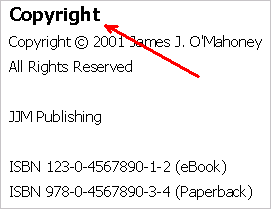
2) Select that heading text:
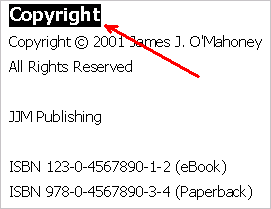
3) Choose the "Format | Font..." menu command, check the "Strikeout" box, and click OK:
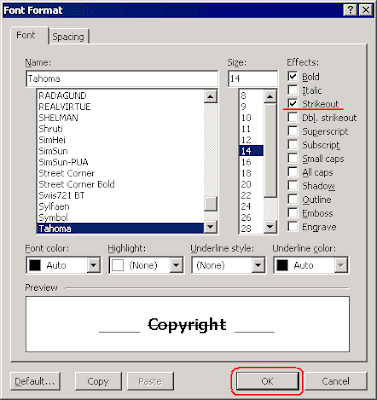
This will apply the "strikeout" formatting to the heading:
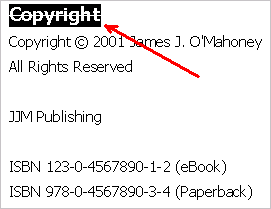
Click here if you want to download a modified sample RTF document with the copyright notice preceded by a "struck-out" heading.
This is all you'll need to do! The "Copyright" Heading text (and corresponding hyperlink) will automatically be present in the eBook table of contents, but the Heading itself will not appear on the related eBook page:
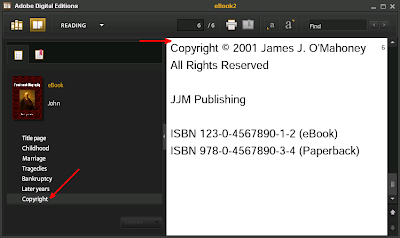
So by formatting Headings in the source document with "strikeout" before saving it to the EPUB format, you will instruct Atlantis to exclude these "struck-out" Headings from the eBook text, but still use them to build the eBook table of contents itself.
This "strikeout" method will come in handy to include elements such as "Front Cover", "Title page", "Copyright", "Dedication" in the eBook TOCs, without promoting them to full-fledged Heading paragraphs on the eBook pages themselves.
Support for heading-less chapters in eBooks has already been included in the latest beta version of Atlantis. You can download it from the Betatesting page of the Atlantis Word Processor site.

Adding items to these tables of contents is extremely easy in Atlantis. All you need to do is to format the chapter headings with the "Heading 1" style in the source document. When it creates a table of contents for an eBook, Atlantis automatically creates links (actually hyperlinks) to all the Heading style paragraphs present in the book.
This is OK for most ordinary purposes, but at times you might want a heading-less chapter from the source document to be included in the eBook table of contents. This might be the case, for example, with the copyright notice. Here is an example:

Click here to download a sample RTF document with the above copyright notice.
If you save this sample document as eBook in the current official version of Atlantis, the copyright notice will be kept in the eBook text, but the eBook table of contents itself won't include any link to the copyright notice. Because this notice is not preceded by a Heading style paragraph in the source document, Atlantis does not treat it as a separate book chapter and does not include it in the eBook TOC (Table Of Contents).
So if you wanted Atlantis to include a link to the copyright notice in the corresponding eBook TOC, you normally would have to turn the copyright notice into a separate chapter, and insert a Heading style paragraph before the notice. The text of that paragraph would automatically appear in the eBook TOC as a link to the copyright notice.
However, most authors will probably find it inappropriate to have big Heading titles heralding simple copyright notices in their eBooks. We have looked into this problem, and the next release of Atlantis Word Processor will offer a convenient and intuitive way to create TOC hyperlinks to heading-less chapters present in eBooks.
Here is how this will be done:
1) Create an ordinary Heading style paragraph right before the target text (in our example, right before the copyright notice). Type any suitable text (the text that you want included as hyperlink in the eBook TOC):

2) Select that heading text:

3) Choose the "Format | Font..." menu command, check the "Strikeout" box, and click OK:

This will apply the "strikeout" formatting to the heading:

Click here if you want to download a modified sample RTF document with the copyright notice preceded by a "struck-out" heading.
This is all you'll need to do! The "Copyright" Heading text (and corresponding hyperlink) will automatically be present in the eBook table of contents, but the Heading itself will not appear on the related eBook page:

So by formatting Headings in the source document with "strikeout" before saving it to the EPUB format, you will instruct Atlantis to exclude these "struck-out" Headings from the eBook text, but still use them to build the eBook table of contents itself.
This "strikeout" method will come in handy to include elements such as "Front Cover", "Title page", "Copyright", "Dedication" in the eBook TOCs, without promoting them to full-fledged Heading paragraphs on the eBook pages themselves.
Support for heading-less chapters in eBooks has already been included in the latest beta version of Atlantis. You can download it from the Betatesting page of the Atlantis Word Processor site.
Tuesday, June 29, 2010
Fallback fonts in EPUBs
When you save a document as eBook in Atlantis, information about the fonts used to format the document text is saved to the eBook file. Accordingly, and for example, an eBook saved from a document formatted with "Times New Roman" will include a similar indication in its file. This is how eBook readers know which fonts they should use for the display of each eBook.
That sounds fine in theory, but in real life eBook readers will rarely display your eBooks with the fonts used in the original documents. This is because the required fonts are not always available on the eBook readers. So for example if "Calibri" was specified as the font to be used for the display of one of your eBooks, and the eBook reader does not have this font, it will have no choice but to display the eBook text with one of its default fonts. In such cases, your eBook might display quite differently from what your original intention was.
The first solution that comes to mind is to include all the required fonts in the eBook files, i.e. embed the fonts in the eBooks. Atlantis can easily embed fonts in eBooks – there is a dedicated option in the Atlantis "Save as eBook" window:
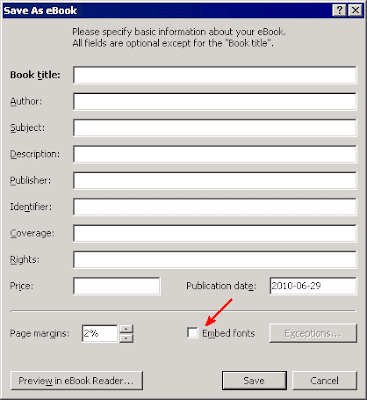
Unfortunately, embedding fonts not only makes the eBook files much bigger but also does not guarantee that the eBooks will display in the intended way in all eBook readers. This is because a few eBook readers (including the iPad) do not support font embedding. No matter how many fonts you embed in your eBook files, they will not be used by these eBook readers.
There is no perfect solution to this problem. But a partial solution is still possible. It will make your eBooks display closer to the original look on the various eBook readers: the next maintenance release of Atlantis – 1.6.5.2 – will not only save the original font names to the eBook files but it will also include information about the corresponding generic font families. In practical terms, the following keywords will be associated with the font names, depending on which family they belong to: serif, sans-serif, cursive, fantasy, or monospace. In this way, the eBook readers will be able to choose the closest substitutes from the available fonts.
This change has already been included in the latest beta version of Atlantis Word Processor.
That sounds fine in theory, but in real life eBook readers will rarely display your eBooks with the fonts used in the original documents. This is because the required fonts are not always available on the eBook readers. So for example if "Calibri" was specified as the font to be used for the display of one of your eBooks, and the eBook reader does not have this font, it will have no choice but to display the eBook text with one of its default fonts. In such cases, your eBook might display quite differently from what your original intention was.
The first solution that comes to mind is to include all the required fonts in the eBook files, i.e. embed the fonts in the eBooks. Atlantis can easily embed fonts in eBooks – there is a dedicated option in the Atlantis "Save as eBook" window:

Unfortunately, embedding fonts not only makes the eBook files much bigger but also does not guarantee that the eBooks will display in the intended way in all eBook readers. This is because a few eBook readers (including the iPad) do not support font embedding. No matter how many fonts you embed in your eBook files, they will not be used by these eBook readers.
There is no perfect solution to this problem. But a partial solution is still possible. It will make your eBooks display closer to the original look on the various eBook readers: the next maintenance release of Atlantis – 1.6.5.2 – will not only save the original font names to the eBook files but it will also include information about the corresponding generic font families. In practical terms, the following keywords will be associated with the font names, depending on which family they belong to: serif, sans-serif, cursive, fantasy, or monospace. In this way, the eBook readers will be able to choose the closest substitutes from the available fonts.
This change has already been included in the latest beta version of Atlantis Word Processor.
Wednesday, June 23, 2010
Release of Atlantis 1.6.5.2 (beta)
Atlantis Word Processor 1.6.5.2 is now available for betatesting.
Atlantis 1.6.5.2 is a maintenance release with minor changes and fixes.
You can find details on this new version of Atlantis on the Betatesting page.
Atlantis 1.6.5.2 is a maintenance release with minor changes and fixes.
You can find details on this new version of Atlantis on the Betatesting page.
Friday, March 5, 2010
Batch conversion
Changing the file type or format of a document (let's say from RTF to DOC, or from TXT to DOCX) is easily done with the "File | Save As..." command of Atlantis (F12). You only need to choose a different document format in the "Save as type" box of the "Save Document As" dialog:
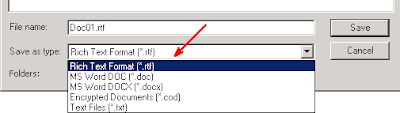
This requires only a few mouse clicks and is OK if you want to change the format of only a few documents. But when you have many more documents to convert (sometimes hundreds or even thousands of them), the "Save As" method is inadequate. Things might take hours to complete and not be fail-safe (you might overlook some of the documents or convert them to a wrong format).
This is why Atlantis Word Processor 1.6.5.1 introduces a new feature allowing you to convert many documents at one go. Under the "File | Save Special" menu, you will find a new "Batch Conversion..." command:
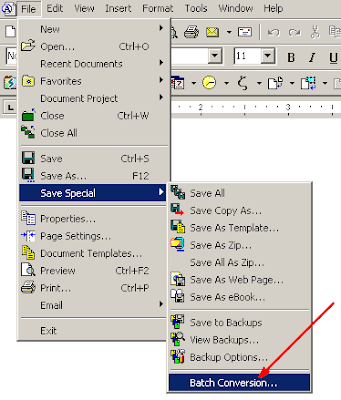
This command, like all other commands in the "File | Save Special" menu, is mirrored in the drop-down menu of the "Save As" toolbar button:
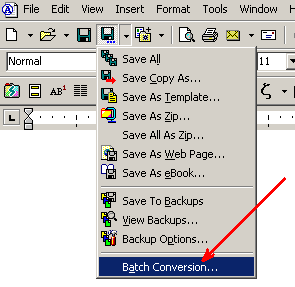
This new "Batch Conversion" command displays a dialog allowing you to convert any number of documents with a few mouse clicks:
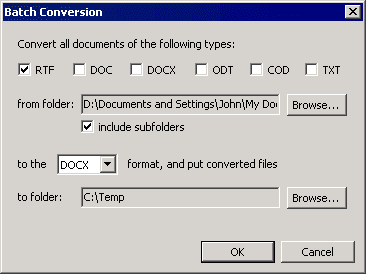
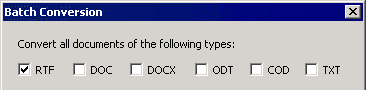
First, choose the format(s) of the documents to convert (you can select several file types together):
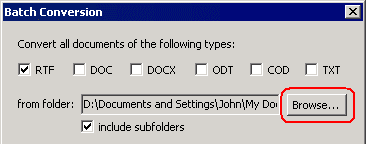
Then specify the location of the source documents (click the "Browse..." button):
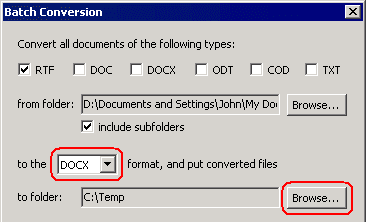
And finally choose the target format and folder for the converted files:
Note that the Atlantis "Batch conversion" command always overrides existing files of same name if any. So we suggest you use or create an empty folder to host the converted files. But of course, you can choose any non-empty folder if you don’t mind overwriting existing files.
Also note that the source and target folders can be identical. In that case the converted files are placed alongside the source files.
When the "include subfolders" box is checked:
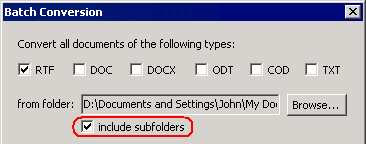
and the source folder does have subfolders, Atlantis
• converts all documents found in the source folder and all its subfolders,
• and places the converted files in the target folder, using mirror subfolders with corresponding names.
Of course, this "Batch conversion" command can be used to convert documents between the standard document formats supported by Atlantis (RTF, DOC, DOCX, ODT, COD and TXT). But it can also be used to convert documents to the EPUB format (the eBook format supported by Atlantis). You only need to choose "EPUB" as the target format in the drop-down:
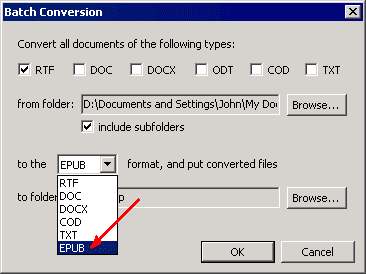
This "Batch conversion" command has already been included in the latest beta version of Atlantis Word Processor 1.6.5.1 which you can download from the betatesting page.

This requires only a few mouse clicks and is OK if you want to change the format of only a few documents. But when you have many more documents to convert (sometimes hundreds or even thousands of them), the "Save As" method is inadequate. Things might take hours to complete and not be fail-safe (you might overlook some of the documents or convert them to a wrong format).
This is why Atlantis Word Processor 1.6.5.1 introduces a new feature allowing you to convert many documents at one go. Under the "File | Save Special" menu, you will find a new "Batch Conversion..." command:

This command, like all other commands in the "File | Save Special" menu, is mirrored in the drop-down menu of the "Save As" toolbar button:

This new "Batch Conversion" command displays a dialog allowing you to convert any number of documents with a few mouse clicks:

First, choose the format(s) of the documents to convert (you can select several file types together):

Then specify the location of the source documents (click the "Browse..." button):

And finally choose the target format and folder for the converted files:

Note that the Atlantis "Batch conversion" command always overrides existing files of same name if any. So we suggest you use or create an empty folder to host the converted files. But of course, you can choose any non-empty folder if you don’t mind overwriting existing files.
Also note that the source and target folders can be identical. In that case the converted files are placed alongside the source files.
When the "include subfolders" box is checked:

and the source folder does have subfolders, Atlantis
• converts all documents found in the source folder and all its subfolders,
• and places the converted files in the target folder, using mirror subfolders with corresponding names.
Of course, this "Batch conversion" command can be used to convert documents between the standard document formats supported by Atlantis (RTF, DOC, DOCX, ODT, COD and TXT). But it can also be used to convert documents to the EPUB format (the eBook format supported by Atlantis). You only need to choose "EPUB" as the target format in the drop-down:

This "Batch conversion" command has already been included in the latest beta version of Atlantis Word Processor 1.6.5.1 which you can download from the betatesting page.
Friday, February 26, 2010
Highlighting and Font Format
The "Highlight"  tool is one of the most basic and often used features of Atlantis.
You can review documents and use specific background color(s) to highlight fragments of particular interest and draw readers' attention to them.
You can also use the "Highlight" tool as an ordinary font formatting tool to change the look of specific fragments. The "Banner creation" document demonstrates how the "Highlight" tool can be used to achieve various visual effects in a document. It is part of the Atlantis collection of Sample documents.
In Atlantis Word Processor 1.6.5.1, this "highlight color" (or simply "highlight") becomes a fully-fledged font formatting attribute:
1) You can now change the highlight characteristics of the document selection from the "Font | Format..." window of Atlantis:

2) The "Copy font format" and "Paste font format"
 commands of Atlantis now transfer highlight colors between text fragments.
3) The Highlight attribute can now be included in paragraph styles through the "Format | Style... > Modify... > Font..." command, or through the corresponding commands of the Styles panel of the Atlantis Control Board.
4) Highlight can also be included in the Format Palette items, and consequently used through the Format Brush tool of Atlantis.
Atlantis Word Processor 1.6.5.1 is currently under betatesting. You can download it from the Betatesting page of our site.
tool is one of the most basic and often used features of Atlantis.You can review documents and use specific background color(s) to highlight fragments of particular interest and draw readers' attention to them.
You can also use the "Highlight" tool as an ordinary font formatting tool to change the look of specific fragments. The "Banner creation" document demonstrates how the "Highlight" tool can be used to achieve various visual effects in a document. It is part of the Atlantis collection of Sample documents.
In Atlantis Word Processor 1.6.5.1, this "highlight color" (or simply "highlight") becomes a fully-fledged font formatting attribute:
1) You can now change the highlight characteristics of the document selection from the "Font | Format..." window of Atlantis:

2) The "Copy font format"
and "Paste font format" commands of Atlantis now transfer highlight colors between text fragments.3) The Highlight attribute can now be included in paragraph styles through the "Format | Style... > Modify... > Font..." command, or through the corresponding commands of the Styles panel of the Atlantis Control Board.
4) Highlight can also be included in the Format Palette items, and consequently used through the Format Brush tool of Atlantis.
Atlantis Word Processor 1.6.5.1 is currently under betatesting. You can download it from the Betatesting page of our site.
Monday, February 8, 2010
Atlantis 1.6.5.1: Miscellaneous improvements
Besides a new Draft view mode, the latest 1.6.5.1 beta version of Atlantis Word Processor includes various other improvements:
1) As you probably know, the Atlantis "Open Document" and "Save Document As" dialogs can display a "Readable preview" of the selected document:

In previous versions of Atlantis, this "Readable preview" was displayed as a continuous flow of text without page margins and breaks, but in practice it often included big undesirable gaps:

These unwanted gaps are no longer present in the latest 1.6.5.1 beta version of Atlantis. The "readable" previews now truly display a continuous flow of text:

2) A similar improvement affects the Print Layout view mode. Previously if a document had several sections each with different page settings (for example if some pages had "portrait" orientation and others "landscape" orientation), Atlantis often displayed unreasonably big gaps between neighboring pages:

This won't happen any more in the new version of Atlantis. Neighboring pages will always be displayed with minimal interpage spacing.
3) At times, a horizontal scrollbar was present at the bottom of the document window even when no such scrolling was possible (this happened when the active document was displayed under any zoom type except the "Page width" or "Text width" zoom types):

In the new Atlantis version, the horizontal scrollbar will only appear purposefully. Accordingly, you'll get more vertical screen space when the scrollbar is not displayed.
1) As you probably know, the Atlantis "Open Document" and "Save Document As" dialogs can display a "Readable preview" of the selected document:

In previous versions of Atlantis, this "Readable preview" was displayed as a continuous flow of text without page margins and breaks, but in practice it often included big undesirable gaps:

These unwanted gaps are no longer present in the latest 1.6.5.1 beta version of Atlantis. The "readable" previews now truly display a continuous flow of text:

2) A similar improvement affects the Print Layout view mode. Previously if a document had several sections each with different page settings (for example if some pages had "portrait" orientation and others "landscape" orientation), Atlantis often displayed unreasonably big gaps between neighboring pages:

This won't happen any more in the new version of Atlantis. Neighboring pages will always be displayed with minimal interpage spacing.
3) At times, a horizontal scrollbar was present at the bottom of the document window even when no such scrolling was possible (this happened when the active document was displayed under any zoom type except the "Page width" or "Text width" zoom types):

In the new Atlantis version, the horizontal scrollbar will only appear purposefully. Accordingly, you'll get more vertical screen space when the scrollbar is not displayed.
Saturday, February 6, 2010
The Window is the Limit
If you have already grabbed a copy of the latest beta version of Atlantis with a new Draft view mode, you probably noticed many differences between this new Draft view mode and the more traditional Print Layout view mode. But these two view modes had one thing in common. Under both modes, the text was wrapped according to the document "page width" as found in the "File | Page Settings..." dialog. As a result of this "wrapping to page width", quite a lot of window space was wasted under the Draft view mode. The following screen capture illustrates this (click it to enlarge):
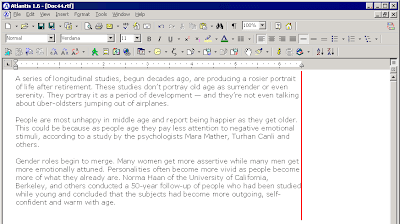
As you can see, the screen area located to the right of the red line was not used because it lies beyond the set "page width" of the document. This is how the Draft view mode of Atlantis works by default. This wasted space is the price to pay to have accurate indication of tab stop positions and paragraph indents (namely the right indent) on the horizontal ruler of the document window.
However, if you don't need exact measurements on the horizontal ruler under the Draft view, and you'd rather have the document text extend from left to right edge so that no screen space is wasted, a new option of the latest beta version of Atlantis allows you to have such a display. This new option is available on the "View" tab of the "Tools | Options..." dialog:

You will check this "wrap to window" option if you want the document text to be wrapped to the right edge of the document window rather than to the right edge of the horizontal ruler under the Draft view mode:
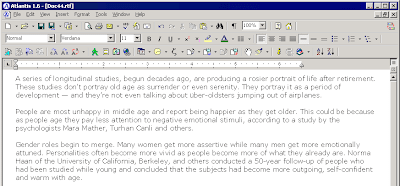
Note that this latest beta version of Atlantis has two new buttons located above the vertical scroll bar of the document window:
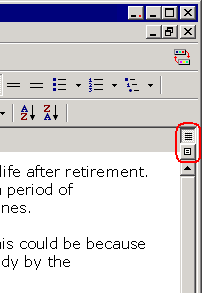
You can use these buttons to switch between the Draft and Print layout view modes of Atlantis.
As always, the Betatesting page of the Atlantis site is the place to look for the latest beta version of Atlantis Word Processor.

As you can see, the screen area located to the right of the red line was not used because it lies beyond the set "page width" of the document. This is how the Draft view mode of Atlantis works by default. This wasted space is the price to pay to have accurate indication of tab stop positions and paragraph indents (namely the right indent) on the horizontal ruler of the document window.
However, if you don't need exact measurements on the horizontal ruler under the Draft view, and you'd rather have the document text extend from left to right edge so that no screen space is wasted, a new option of the latest beta version of Atlantis allows you to have such a display. This new option is available on the "View" tab of the "Tools | Options..." dialog:

You will check this "wrap to window" option if you want the document text to be wrapped to the right edge of the document window rather than to the right edge of the horizontal ruler under the Draft view mode:

Note that this latest beta version of Atlantis has two new buttons located above the vertical scroll bar of the document window:

You can use these buttons to switch between the Draft and Print layout view modes of Atlantis.
As always, the Betatesting page of the Atlantis site is the place to look for the latest beta version of Atlantis Word Processor.
Wednesday, February 3, 2010
Release of Atlantis 1.6.5.1 (beta)
Atlantis Word Processor 1.6.5.1 is now available for betatesting.
This version of Atlantis introduces a new Draft viewing mode.
You can find details on this new version of Atlantis on the Betatesting page.
This version of Atlantis introduces a new Draft viewing mode.
You can find details on this new version of Atlantis on the Betatesting page.
Monday, January 25, 2010
Power Type is speeding up
Here is one more improvement that you will find in Atlantis version 1.6.5.
Power Type – the Atlantis typing assist – is a handy tool that helps you type text in less keystrokes. As you type text in Atlantis, Power Type collects statistical information about the typed words and their usual environment. As time goes on, the typing suggestions become more and more appropriate. You only have to select a word in the Power Type pop-up, press the Enter key, and it gets automatically inserted on-the-fly:

Now if you have been using this Power Type feature over an extended period of time (for months or even years), you probably noticed the Power Type suggestions popping up with a marked delay. This was due to the fact that Atlantis took more and more time to compose the lists of Power Type suggestions. This led paradoxically to a slower response to keystrokes and a general slow down of typing.
We have corrected this. Atlantis 1.6.5 will build and display the Power Type suggestions much faster than before, no matter how long you have been using this feature. Your keystrokes will be followed by an instant response from Atlantis.
This improvement has already been included in the latest beta version of Atlantis.
Power Type – the Atlantis typing assist – is a handy tool that helps you type text in less keystrokes. As you type text in Atlantis, Power Type collects statistical information about the typed words and their usual environment. As time goes on, the typing suggestions become more and more appropriate. You only have to select a word in the Power Type pop-up, press the Enter key, and it gets automatically inserted on-the-fly:

Now if you have been using this Power Type feature over an extended period of time (for months or even years), you probably noticed the Power Type suggestions popping up with a marked delay. This was due to the fact that Atlantis took more and more time to compose the lists of Power Type suggestions. This led paradoxically to a slower response to keystrokes and a general slow down of typing.
We have corrected this. Atlantis 1.6.5 will build and display the Power Type suggestions much faster than before, no matter how long you have been using this feature. Your keystrokes will be followed by an instant response from Atlantis.
This improvement has already been included in the latest beta version of Atlantis.
Saturday, January 16, 2010
Lifting limitations
As you probably know, characters can be formatted as "small caps" in Atlantis. You simply select a text fragment, choose the "Format | Font..." menu command, and check the "Small caps" box.
"Small caps" formatting does not change the document text, it only makes the lowercase letters look like small capital letters:
Even though "small caps" is one of the font formatting attributes allowed in XHTML, and consequently in eBooks in the EPUB format, none of the major eBook readers currently can display "small caps" text correctly.
So what happened when you saved a document as eBook in Atlantis and it contained text formatted in "small caps"? Atlantis did save the corresponding "small caps" formatting to the eBook file. But if you opened that eBook in Adobe Digital Editions or Sony Reader, the "small caps" text looked as ordinary lowercase text.
We obviously could not improve the way existing eBook readers display "small caps". But we have implemented a workaround for this particular limitation of eReaders. From now on Atlantis will simulate "small caps" formatting in the eBooks it creates by applying both the uppercase pattern and a reduced font size to lowercase letters formatted with "small caps". In other words, instead of keeping the "small caps" formatting of the original text, Atlantis will convert it to uppercase with reduced font size. It won't be "small caps" per se but it will look exactly like it in the eReaders.
And there is more. "All caps" formatting as can be found in the "Format | Font..." dialog of Atlantis is also unsupported by the current eBook readers. We needed another workaround here. So from now on Atlantis will simulate "all caps" formatting in the eBooks it creates by applying the uppercase pattern to any "all caps" fragments of text when saving them to an eBook.
When saved to an eBook, the original "small caps" and "all caps" texts will look in eReaders in the same way as they do in Atlantis.
This improvement has already been included in the latest beta version of Atlantis.
"Small caps" formatting does not change the document text, it only makes the lowercase letters look like small capital letters:

Even though "small caps" is one of the font formatting attributes allowed in XHTML, and consequently in eBooks in the EPUB format, none of the major eBook readers currently can display "small caps" text correctly.
So what happened when you saved a document as eBook in Atlantis and it contained text formatted in "small caps"? Atlantis did save the corresponding "small caps" formatting to the eBook file. But if you opened that eBook in Adobe Digital Editions or Sony Reader, the "small caps" text looked as ordinary lowercase text.
We obviously could not improve the way existing eBook readers display "small caps". But we have implemented a workaround for this particular limitation of eReaders. From now on Atlantis will simulate "small caps" formatting in the eBooks it creates by applying both the uppercase pattern and a reduced font size to lowercase letters formatted with "small caps". In other words, instead of keeping the "small caps" formatting of the original text, Atlantis will convert it to uppercase with reduced font size. It won't be "small caps" per se but it will look exactly like it in the eReaders.
And there is more. "All caps" formatting as can be found in the "Format | Font..." dialog of Atlantis is also unsupported by the current eBook readers. We needed another workaround here. So from now on Atlantis will simulate "all caps" formatting in the eBooks it creates by applying the uppercase pattern to any "all caps" fragments of text when saving them to an eBook.
When saved to an eBook, the original "small caps" and "all caps" texts will look in eReaders in the same way as they do in Atlantis.
This improvement has already been included in the latest beta version of Atlantis.
Friday, January 8, 2010
eBook cover images and Mobipocket
The latest beta version of Atlantis Word Processor saves cover images to eBooks in a more friendly way towards the Mobipocket Reader, one of the most popular eBook readers.
So what has been improved in the Save as eBook feature of Atlantis?
Previously if you saved an eBook in Atlantis, and viewed it in Mobipocket Reader, a blank preview was displayed for the book:

Now if you save an eBook in the latest version of Atlantis, Mobipocket Reader will display a nice preview of the book cover image:

The display of Atlantis EPUBs in other e-readers like Adobe Digital Editions and Sony eReader will not be affected by this latest change to the "Save as eBook" feature of Atlantis.
So what has been improved in the Save as eBook feature of Atlantis?
Previously if you saved an eBook in Atlantis, and viewed it in Mobipocket Reader, a blank preview was displayed for the book:

Now if you save an eBook in the latest version of Atlantis, Mobipocket Reader will display a nice preview of the book cover image:

The display of Atlantis EPUBs in other e-readers like Adobe Digital Editions and Sony eReader will not be affected by this latest change to the "Save as eBook" feature of Atlantis.
Saturday, December 26, 2009
Font embedding in eBooks
If you compose or read eBooks exclusively in the English language, you will probably never notice a limitation present in the eBook readers like Adobe Digital Editions and Sony eBook Reader. Their built-in fonts are sufficient to display English texts correctly, but they miss some of the glyphs necessary for the display of extended Latin characters, and especially non-Latin characters.
Let's take an example. Here is a Greek text fragment as it displays in Atlantis:
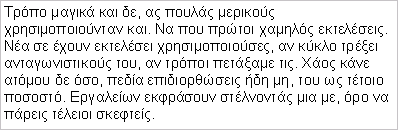
If you save it as eBook in Atlantis, then open the resulting EPUB file in Adobe Digital Editions, you will see something like this:
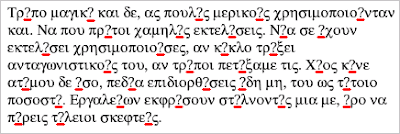
This might be all Greek to you :) ... but you will have noticed the question marks within the words. Being unable to display some of the Greek characters in this text, ADE simply replaced them with question marks. This is because the ADE built-in fonts do not include the corresponding glyphs. So if your eBooks contain Greek, Polish, Baltic, Cyrillic or Asian characters, most likely they won't display correctly in the currently available eBook readers.
You might say "what if I embedded the appropriate fonts in my EPUB files?" This is OK because the EPUB standard supports font embedding in eBooks. In other words, you can include the necessary font files within the eBooks themselves. In this way, the eBook readers won't miss any character glyph.
Font embedding in EPUB files can be done manually. A number of tutorials are available on the Web. But the procedure is quite tricky and time-consuming, especially to inexperienced users.
This is when Atlantis comes in very handy! Atlantis is now able to embed fonts in eBooks automatically. The "Save as eBook" dialog of Atlantis has a new check box to "Embed fonts":
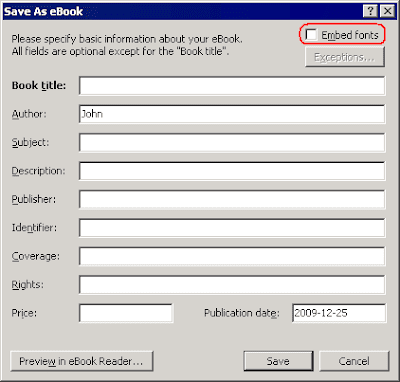
When this option is enabled, Atlantis automatically embeds all the necessary fonts in the saved EPUB files. You don't have to worry any more. EPUB readers automatically use any embedded fonts to display the eBooks.
Let's take our example again. This time we have saved our Greek document as EPUB from Atlantis with the "Embed fonts" option enabled. Here is the same text fragment viewed in Adobe Digital Editions with embedded fonts:
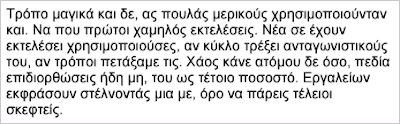
As you can see, the question marks have disappeared. All the characters are displayed correctly.
Atlantis normally embeds all the fonts used in the original document. But if you click the "Exceptions..." button right below the "Embed fonts" box:
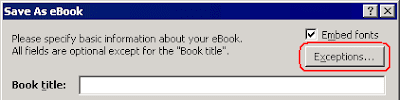
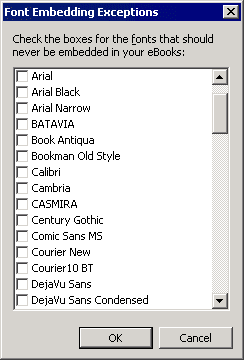
you can instruct Atlantis not to embed specific fonts:
If you embed fonts in your EPUB files, their display in the e-readers will be as faithful as possible to the original document display. This might sound great. But there are a few snags. You should take them into account before deciding to embed fonts in your eBooks:
1) The two major eBook readers – Adobe Digital Editions and Sony Reader – support font embedding in EPUBs. But if your eBooks are meant exclusively for another eBook reader, embedding fonts in them makes no sense since these other eBook readers currently do not support font embedding.
2) Embedded fonts can significantly increase the size of your eBook files. Generating an EPUB file with the "Embed fonts" box checked might add megabytes to the size of the resulting eBook file. So if there are limitations regarding the size of your eBook files, font embedding might not be an option.
3) By embedding fonts in your eBook files, you force the eBook readers to use the embedded fonts rather than their built-in fonts. In this way, the eBook will mimic the original look of your document. But fonts which are good for monitors with big screens, might worsen readability of your eBook on portable devices with small screens. In addition, your eBook with embedded fonts might look quite differently compared to the display of other more "traditional" eBooks with no embedded fonts. This might also inconvenience the readers of your eBooks.
On the whole, it is preferable to avoid font embedding in eBooks whenever possible. This is why the "Embed fonts" option is initially off in Atlantis. We recommend that you use font embedding only when your documents contain non-Latin characters, or when it is impossible to reflect the book style without its original fonts. But as always, it is up to you to decide which move is more appropriate.
You can already try this new font embedding feature. It is included in the latest beta version of Atlantis Word Processor. You can download it from the Betatesting page of the Atlantis site, and install it to your PC.
Let's take an example. Here is a Greek text fragment as it displays in Atlantis:

If you save it as eBook in Atlantis, then open the resulting EPUB file in Adobe Digital Editions, you will see something like this:

This might be all Greek to you :) ... but you will have noticed the question marks within the words. Being unable to display some of the Greek characters in this text, ADE simply replaced them with question marks. This is because the ADE built-in fonts do not include the corresponding glyphs. So if your eBooks contain Greek, Polish, Baltic, Cyrillic or Asian characters, most likely they won't display correctly in the currently available eBook readers.
You might say "what if I embedded the appropriate fonts in my EPUB files?" This is OK because the EPUB standard supports font embedding in eBooks. In other words, you can include the necessary font files within the eBooks themselves. In this way, the eBook readers won't miss any character glyph.
Font embedding in EPUB files can be done manually. A number of tutorials are available on the Web. But the procedure is quite tricky and time-consuming, especially to inexperienced users.
This is when Atlantis comes in very handy! Atlantis is now able to embed fonts in eBooks automatically. The "Save as eBook" dialog of Atlantis has a new check box to "Embed fonts":

When this option is enabled, Atlantis automatically embeds all the necessary fonts in the saved EPUB files. You don't have to worry any more. EPUB readers automatically use any embedded fonts to display the eBooks.
Let's take our example again. This time we have saved our Greek document as EPUB from Atlantis with the "Embed fonts" option enabled. Here is the same text fragment viewed in Adobe Digital Editions with embedded fonts:

As you can see, the question marks have disappeared. All the characters are displayed correctly.
Atlantis normally embeds all the fonts used in the original document. But if you click the "Exceptions..." button right below the "Embed fonts" box:

you can instruct Atlantis not to embed specific fonts:

If you embed fonts in your EPUB files, their display in the e-readers will be as faithful as possible to the original document display. This might sound great. But there are a few snags. You should take them into account before deciding to embed fonts in your eBooks:
1) The two major eBook readers – Adobe Digital Editions and Sony Reader – support font embedding in EPUBs. But if your eBooks are meant exclusively for another eBook reader, embedding fonts in them makes no sense since these other eBook readers currently do not support font embedding.
2) Embedded fonts can significantly increase the size of your eBook files. Generating an EPUB file with the "Embed fonts" box checked might add megabytes to the size of the resulting eBook file. So if there are limitations regarding the size of your eBook files, font embedding might not be an option.
3) By embedding fonts in your eBook files, you force the eBook readers to use the embedded fonts rather than their built-in fonts. In this way, the eBook will mimic the original look of your document. But fonts which are good for monitors with big screens, might worsen readability of your eBook on portable devices with small screens. In addition, your eBook with embedded fonts might look quite differently compared to the display of other more "traditional" eBooks with no embedded fonts. This might also inconvenience the readers of your eBooks.
On the whole, it is preferable to avoid font embedding in eBooks whenever possible. This is why the "Embed fonts" option is initially off in Atlantis. We recommend that you use font embedding only when your documents contain non-Latin characters, or when it is impossible to reflect the book style without its original fonts. But as always, it is up to you to decide which move is more appropriate.
You can already try this new font embedding feature. It is included in the latest beta version of Atlantis Word Processor. You can download it from the Betatesting page of the Atlantis site, and install it to your PC.
Monday, December 21, 2009
Beta versions: Easy upgrading
Checking for updates to Atlantis Word Processor and updating it is as simple as 1-2-3. You run the "Help | Check for Updates..." menu command from Atlantis itself and follow simple onscreen instructions.
But things were not that simple and convenient when it came to beta versions of Atlantis. Beta versions of Atlantis could only be updated manually. Interested end-users were supposed to make regular visits to the Atlantis Betatesting page, and download the new beta builds manually.
We have now simplified matters for our betatesters:
1) Individual beta builds of Atlantis always have a specific code number. That code number is displayed in the right topmost corner of the online Betatesting page:
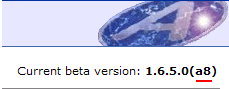
But up to now that specific beta number was never displayed in the "Help | About..." window. Actually it was not even possible to tell when a given copy of Atlantis was beta.
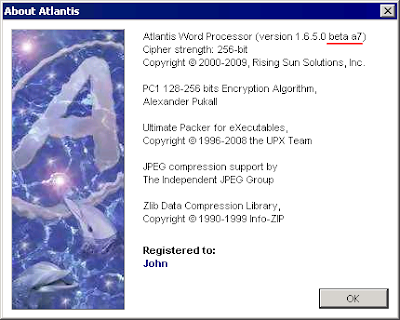
The "Help | About..." window of Atlantis betas now displays these specific version numbers, and signals a beta version:
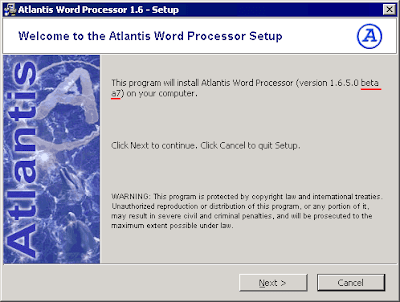
The Setup files of Atlantis beta versions now also display this information:
2) The "Help | Check for Updates..." dialog of Atlantis betas will allow you to upgrade to new beta builds of Atlantis:
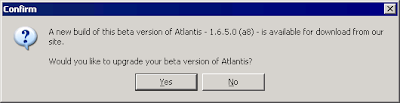
Clicking "Yes" will allow you to upgrade your beta version of Atlantis without visiting the Betatesting page manually. You only need to follow the onscreen instructions.
3) Previously when the betatesting phase of a particular version of Atlantis was over, that version was released as a public version. But there was no automatic way to replace a beta version of Atlantis with the corresponding public version of Atlantis. Not anymore. The "Help | Check for Updates..." dialog of the beta versions now suggests such a move.
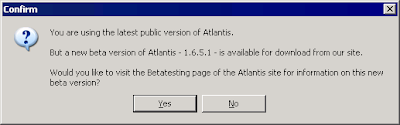
4) Finally, the "Help | Check for Updates..." dialog of public versions of Atlantis now informs you about any new beta versions of Atlantis:
All the changes mentioned in this post apply to builds of Atlantis released after December 18, 2009.
But things were not that simple and convenient when it came to beta versions of Atlantis. Beta versions of Atlantis could only be updated manually. Interested end-users were supposed to make regular visits to the Atlantis Betatesting page, and download the new beta builds manually.
We have now simplified matters for our betatesters:
1) Individual beta builds of Atlantis always have a specific code number. That code number is displayed in the right topmost corner of the online Betatesting page:

But up to now that specific beta number was never displayed in the "Help | About..." window. Actually it was not even possible to tell when a given copy of Atlantis was beta.
The "Help | About..." window of Atlantis betas now displays these specific version numbers, and signals a beta version:

The Setup files of Atlantis beta versions now also display this information:

2) The "Help | Check for Updates..." dialog of Atlantis betas will allow you to upgrade to new beta builds of Atlantis:

Clicking "Yes" will allow you to upgrade your beta version of Atlantis without visiting the Betatesting page manually. You only need to follow the onscreen instructions.
3) Previously when the betatesting phase of a particular version of Atlantis was over, that version was released as a public version. But there was no automatic way to replace a beta version of Atlantis with the corresponding public version of Atlantis. Not anymore. The "Help | Check for Updates..." dialog of the beta versions now suggests such a move.
4) Finally, the "Help | Check for Updates..." dialog of public versions of Atlantis now informs you about any new beta versions of Atlantis:

All the changes mentioned in this post apply to builds of Atlantis released after December 18, 2009.
Subscribe to:
Posts (Atom)
