Atlantis Word Processor 2.0.3 has been released.
This version is a minor release with lots of optimizations to various features and commands.
Click here for the release notes.
This upgrade is free for all registered users of Atlantis Word Processor 2.x.
There are multiple ways to upgrade your copy of Atlantis Word Processor to the latest version.
If you do not have Atlantis Word Processor on your computer yet, you can install this new version of Atlantis by running the latest setup file of Atlantis. Click here to download it.
Showing posts with label amendments. Show all posts
Showing posts with label amendments. Show all posts
Friday, July 29, 2016

Tuesday, June 29, 2010
Fallback fonts in EPUBs
When you save a document as eBook in Atlantis, information about the fonts used to format the document text is saved to the eBook file. Accordingly, and for example, an eBook saved from a document formatted with "Times New Roman" will include a similar indication in its file. This is how eBook readers know which fonts they should use for the display of each eBook.
That sounds fine in theory, but in real life eBook readers will rarely display your eBooks with the fonts used in the original documents. This is because the required fonts are not always available on the eBook readers. So for example if "Calibri" was specified as the font to be used for the display of one of your eBooks, and the eBook reader does not have this font, it will have no choice but to display the eBook text with one of its default fonts. In such cases, your eBook might display quite differently from what your original intention was.
The first solution that comes to mind is to include all the required fonts in the eBook files, i.e. embed the fonts in the eBooks. Atlantis can easily embed fonts in eBooks – there is a dedicated option in the Atlantis "Save as eBook" window:
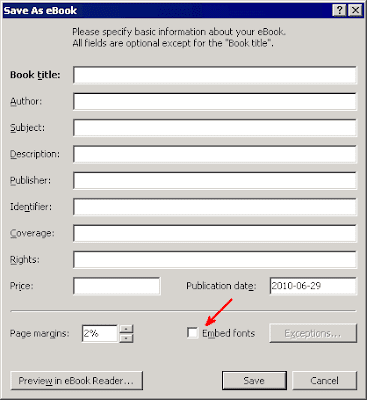
Unfortunately, embedding fonts not only makes the eBook files much bigger but also does not guarantee that the eBooks will display in the intended way in all eBook readers. This is because a few eBook readers (including the iPad) do not support font embedding. No matter how many fonts you embed in your eBook files, they will not be used by these eBook readers.
There is no perfect solution to this problem. But a partial solution is still possible. It will make your eBooks display closer to the original look on the various eBook readers: the next maintenance release of Atlantis – 1.6.5.2 – will not only save the original font names to the eBook files but it will also include information about the corresponding generic font families. In practical terms, the following keywords will be associated with the font names, depending on which family they belong to: serif, sans-serif, cursive, fantasy, or monospace. In this way, the eBook readers will be able to choose the closest substitutes from the available fonts.
This change has already been included in the latest beta version of Atlantis Word Processor.
That sounds fine in theory, but in real life eBook readers will rarely display your eBooks with the fonts used in the original documents. This is because the required fonts are not always available on the eBook readers. So for example if "Calibri" was specified as the font to be used for the display of one of your eBooks, and the eBook reader does not have this font, it will have no choice but to display the eBook text with one of its default fonts. In such cases, your eBook might display quite differently from what your original intention was.
The first solution that comes to mind is to include all the required fonts in the eBook files, i.e. embed the fonts in the eBooks. Atlantis can easily embed fonts in eBooks – there is a dedicated option in the Atlantis "Save as eBook" window:

Unfortunately, embedding fonts not only makes the eBook files much bigger but also does not guarantee that the eBooks will display in the intended way in all eBook readers. This is because a few eBook readers (including the iPad) do not support font embedding. No matter how many fonts you embed in your eBook files, they will not be used by these eBook readers.
There is no perfect solution to this problem. But a partial solution is still possible. It will make your eBooks display closer to the original look on the various eBook readers: the next maintenance release of Atlantis – 1.6.5.2 – will not only save the original font names to the eBook files but it will also include information about the corresponding generic font families. In practical terms, the following keywords will be associated with the font names, depending on which family they belong to: serif, sans-serif, cursive, fantasy, or monospace. In this way, the eBook readers will be able to choose the closest substitutes from the available fonts.
This change has already been included in the latest beta version of Atlantis Word Processor.
Monday, February 22, 2010
Default toolbar commands
As you probably know, you can customize the Atlantis toolbars through the "Tools | Toolbars..." menu command. You can remove the toolbar buttons that you do not use, add the command buttons that you need, move the buttons around to your convenience. And you can also restore the default set of original toolbars using the "Restore Default" button in the "Tools | Toolbars..." dialog.
Obviously this default set of toolbar commands is the one you find when you make a clean install of Atlantis. It will be changed in the upcoming version of Atlantis 1.6.5.1. Here is how the Main set of toolbar commands will look like (click to enlarge):

And the new Alternative set (which is displayed when you press the Ctrl key twice, or click the "Switch toolbars" button):

The "Switch toolbars" and the "Go to" buttons will also look differently:
 Switch toolbars
 Go to
Go to
Note that this new default set of toolbar commands will not affect the existing installations of Atlantis. If you want to use the new default set of toolbar commands, you will have to click the "Restore Default" button in the "Tools | Toolbars..." dialog.
This new default set of toolbar commands has already been included in the latest beta version of Atlantis.
Obviously this default set of toolbar commands is the one you find when you make a clean install of Atlantis. It will be changed in the upcoming version of Atlantis 1.6.5.1. Here is how the Main set of toolbar commands will look like (click to enlarge):

And the new Alternative set (which is displayed when you press the Ctrl key twice, or click the "Switch toolbars" button):

The "Switch toolbars" and the "Go to" buttons will also look differently:
Switch toolbars Go toNote that this new default set of toolbar commands will not affect the existing installations of Atlantis. If you want to use the new default set of toolbar commands, you will have to click the "Restore Default" button in the "Tools | Toolbars..." dialog.
This new default set of toolbar commands has already been included in the latest beta version of Atlantis.
Monday, February 8, 2010
Atlantis 1.6.5.1: Miscellaneous improvements
Besides a new Draft view mode, the latest 1.6.5.1 beta version of Atlantis Word Processor includes various other improvements:
1) As you probably know, the Atlantis "Open Document" and "Save Document As" dialogs can display a "Readable preview" of the selected document:

In previous versions of Atlantis, this "Readable preview" was displayed as a continuous flow of text without page margins and breaks, but in practice it often included big undesirable gaps:

These unwanted gaps are no longer present in the latest 1.6.5.1 beta version of Atlantis. The "readable" previews now truly display a continuous flow of text:

2) A similar improvement affects the Print Layout view mode. Previously if a document had several sections each with different page settings (for example if some pages had "portrait" orientation and others "landscape" orientation), Atlantis often displayed unreasonably big gaps between neighboring pages:

This won't happen any more in the new version of Atlantis. Neighboring pages will always be displayed with minimal interpage spacing.
3) At times, a horizontal scrollbar was present at the bottom of the document window even when no such scrolling was possible (this happened when the active document was displayed under any zoom type except the "Page width" or "Text width" zoom types):

In the new Atlantis version, the horizontal scrollbar will only appear purposefully. Accordingly, you'll get more vertical screen space when the scrollbar is not displayed.
1) As you probably know, the Atlantis "Open Document" and "Save Document As" dialogs can display a "Readable preview" of the selected document:

In previous versions of Atlantis, this "Readable preview" was displayed as a continuous flow of text without page margins and breaks, but in practice it often included big undesirable gaps:

These unwanted gaps are no longer present in the latest 1.6.5.1 beta version of Atlantis. The "readable" previews now truly display a continuous flow of text:

2) A similar improvement affects the Print Layout view mode. Previously if a document had several sections each with different page settings (for example if some pages had "portrait" orientation and others "landscape" orientation), Atlantis often displayed unreasonably big gaps between neighboring pages:

This won't happen any more in the new version of Atlantis. Neighboring pages will always be displayed with minimal interpage spacing.
3) At times, a horizontal scrollbar was present at the bottom of the document window even when no such scrolling was possible (this happened when the active document was displayed under any zoom type except the "Page width" or "Text width" zoom types):

In the new Atlantis version, the horizontal scrollbar will only appear purposefully. Accordingly, you'll get more vertical screen space when the scrollbar is not displayed.
Monday, January 25, 2010
Power Type is speeding up
Here is one more improvement that you will find in Atlantis version 1.6.5.
Power Type – the Atlantis typing assist – is a handy tool that helps you type text in less keystrokes. As you type text in Atlantis, Power Type collects statistical information about the typed words and their usual environment. As time goes on, the typing suggestions become more and more appropriate. You only have to select a word in the Power Type pop-up, press the Enter key, and it gets automatically inserted on-the-fly:

Now if you have been using this Power Type feature over an extended period of time (for months or even years), you probably noticed the Power Type suggestions popping up with a marked delay. This was due to the fact that Atlantis took more and more time to compose the lists of Power Type suggestions. This led paradoxically to a slower response to keystrokes and a general slow down of typing.
We have corrected this. Atlantis 1.6.5 will build and display the Power Type suggestions much faster than before, no matter how long you have been using this feature. Your keystrokes will be followed by an instant response from Atlantis.
This improvement has already been included in the latest beta version of Atlantis.
Power Type – the Atlantis typing assist – is a handy tool that helps you type text in less keystrokes. As you type text in Atlantis, Power Type collects statistical information about the typed words and their usual environment. As time goes on, the typing suggestions become more and more appropriate. You only have to select a word in the Power Type pop-up, press the Enter key, and it gets automatically inserted on-the-fly:

Now if you have been using this Power Type feature over an extended period of time (for months or even years), you probably noticed the Power Type suggestions popping up with a marked delay. This was due to the fact that Atlantis took more and more time to compose the lists of Power Type suggestions. This led paradoxically to a slower response to keystrokes and a general slow down of typing.
We have corrected this. Atlantis 1.6.5 will build and display the Power Type suggestions much faster than before, no matter how long you have been using this feature. Your keystrokes will be followed by an instant response from Atlantis.
This improvement has already been included in the latest beta version of Atlantis.
Tuesday, January 19, 2010
Getting less noisy
A new review of Atlantis Word Processor has just been published by IT Reviews:
http://www.itreviews.co.uk/software/s845.htm
It's an interesting review with a few critical notes. One of them deals with the Atlantis sounds. The author finds Atlantis "too noisy". As a matter of fact, the Atlantis default setup includes the Standard sound scheme with sounds for plenty of events. We understand that some of our first-time users might feel that Atlantis at times sounds more like a jukebox than a word processor. In the past, some of them actually asked in desperation how they could possibly disable these sounds.
So we've decided to take our cue from this latest review of Atlantis and change the way the Atlantis Sounds are installed. Any new release of Atlantis will install the Basic sound scheme with the typewriter sounds plus a few other really useful sounds, for events such as a "Caps Lock toggle" or a "potential misspelling". In this way, new Atlantis users will not get a too noisy "Hello" from Atlantis.
For those who want more sounds, the complete sound scheme with about 100 sounds will be available as an optional download from the Atlantis site.
http://www.itreviews.co.uk/software/s845.htm
It's an interesting review with a few critical notes. One of them deals with the Atlantis sounds. The author finds Atlantis "too noisy". As a matter of fact, the Atlantis default setup includes the Standard sound scheme with sounds for plenty of events. We understand that some of our first-time users might feel that Atlantis at times sounds more like a jukebox than a word processor. In the past, some of them actually asked in desperation how they could possibly disable these sounds.
So we've decided to take our cue from this latest review of Atlantis and change the way the Atlantis Sounds are installed. Any new release of Atlantis will install the Basic sound scheme with the typewriter sounds plus a few other really useful sounds, for events such as a "Caps Lock toggle" or a "potential misspelling". In this way, new Atlantis users will not get a too noisy "Hello" from Atlantis.
For those who want more sounds, the complete sound scheme with about 100 sounds will be available as an optional download from the Atlantis site.
Saturday, January 16, 2010
Lifting limitations
As you probably know, characters can be formatted as "small caps" in Atlantis. You simply select a text fragment, choose the "Format | Font..." menu command, and check the "Small caps" box.
"Small caps" formatting does not change the document text, it only makes the lowercase letters look like small capital letters:
Even though "small caps" is one of the font formatting attributes allowed in XHTML, and consequently in eBooks in the EPUB format, none of the major eBook readers currently can display "small caps" text correctly.
So what happened when you saved a document as eBook in Atlantis and it contained text formatted in "small caps"? Atlantis did save the corresponding "small caps" formatting to the eBook file. But if you opened that eBook in Adobe Digital Editions or Sony Reader, the "small caps" text looked as ordinary lowercase text.
We obviously could not improve the way existing eBook readers display "small caps". But we have implemented a workaround for this particular limitation of eReaders. From now on Atlantis will simulate "small caps" formatting in the eBooks it creates by applying both the uppercase pattern and a reduced font size to lowercase letters formatted with "small caps". In other words, instead of keeping the "small caps" formatting of the original text, Atlantis will convert it to uppercase with reduced font size. It won't be "small caps" per se but it will look exactly like it in the eReaders.
And there is more. "All caps" formatting as can be found in the "Format | Font..." dialog of Atlantis is also unsupported by the current eBook readers. We needed another workaround here. So from now on Atlantis will simulate "all caps" formatting in the eBooks it creates by applying the uppercase pattern to any "all caps" fragments of text when saving them to an eBook.
When saved to an eBook, the original "small caps" and "all caps" texts will look in eReaders in the same way as they do in Atlantis.
This improvement has already been included in the latest beta version of Atlantis.
"Small caps" formatting does not change the document text, it only makes the lowercase letters look like small capital letters:

Even though "small caps" is one of the font formatting attributes allowed in XHTML, and consequently in eBooks in the EPUB format, none of the major eBook readers currently can display "small caps" text correctly.
So what happened when you saved a document as eBook in Atlantis and it contained text formatted in "small caps"? Atlantis did save the corresponding "small caps" formatting to the eBook file. But if you opened that eBook in Adobe Digital Editions or Sony Reader, the "small caps" text looked as ordinary lowercase text.
We obviously could not improve the way existing eBook readers display "small caps". But we have implemented a workaround for this particular limitation of eReaders. From now on Atlantis will simulate "small caps" formatting in the eBooks it creates by applying both the uppercase pattern and a reduced font size to lowercase letters formatted with "small caps". In other words, instead of keeping the "small caps" formatting of the original text, Atlantis will convert it to uppercase with reduced font size. It won't be "small caps" per se but it will look exactly like it in the eReaders.
And there is more. "All caps" formatting as can be found in the "Format | Font..." dialog of Atlantis is also unsupported by the current eBook readers. We needed another workaround here. So from now on Atlantis will simulate "all caps" formatting in the eBooks it creates by applying the uppercase pattern to any "all caps" fragments of text when saving them to an eBook.
When saved to an eBook, the original "small caps" and "all caps" texts will look in eReaders in the same way as they do in Atlantis.
This improvement has already been included in the latest beta version of Atlantis.
Friday, January 8, 2010
eBook cover images and Mobipocket
The latest beta version of Atlantis Word Processor saves cover images to eBooks in a more friendly way towards the Mobipocket Reader, one of the most popular eBook readers.
So what has been improved in the Save as eBook feature of Atlantis?
Previously if you saved an eBook in Atlantis, and viewed it in Mobipocket Reader, a blank preview was displayed for the book:

Now if you save an eBook in the latest version of Atlantis, Mobipocket Reader will display a nice preview of the book cover image:

The display of Atlantis EPUBs in other e-readers like Adobe Digital Editions and Sony eReader will not be affected by this latest change to the "Save as eBook" feature of Atlantis.
So what has been improved in the Save as eBook feature of Atlantis?
Previously if you saved an eBook in Atlantis, and viewed it in Mobipocket Reader, a blank preview was displayed for the book:

Now if you save an eBook in the latest version of Atlantis, Mobipocket Reader will display a nice preview of the book cover image:

The display of Atlantis EPUBs in other e-readers like Adobe Digital Editions and Sony eReader will not be affected by this latest change to the "Save as eBook" feature of Atlantis.
Monday, December 21, 2009
Beta versions: Easy upgrading
Checking for updates to Atlantis Word Processor and updating it is as simple as 1-2-3. You run the "Help | Check for Updates..." menu command from Atlantis itself and follow simple onscreen instructions.
But things were not that simple and convenient when it came to beta versions of Atlantis. Beta versions of Atlantis could only be updated manually. Interested end-users were supposed to make regular visits to the Atlantis Betatesting page, and download the new beta builds manually.
We have now simplified matters for our betatesters:
1) Individual beta builds of Atlantis always have a specific code number. That code number is displayed in the right topmost corner of the online Betatesting page:
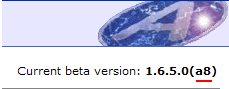
But up to now that specific beta number was never displayed in the "Help | About..." window. Actually it was not even possible to tell when a given copy of Atlantis was beta.
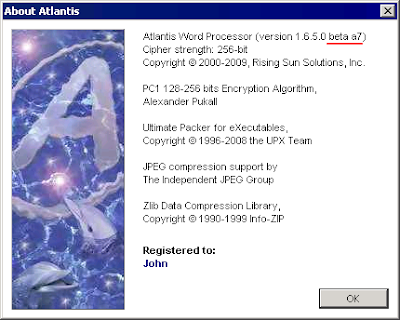
The "Help | About..." window of Atlantis betas now displays these specific version numbers, and signals a beta version:
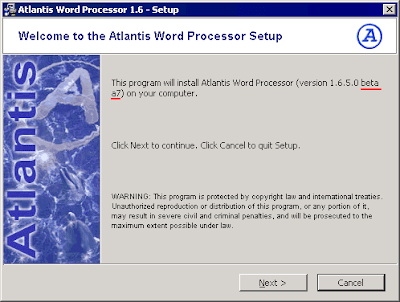
The Setup files of Atlantis beta versions now also display this information:
2) The "Help | Check for Updates..." dialog of Atlantis betas will allow you to upgrade to new beta builds of Atlantis:
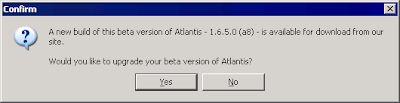
Clicking "Yes" will allow you to upgrade your beta version of Atlantis without visiting the Betatesting page manually. You only need to follow the onscreen instructions.
3) Previously when the betatesting phase of a particular version of Atlantis was over, that version was released as a public version. But there was no automatic way to replace a beta version of Atlantis with the corresponding public version of Atlantis. Not anymore. The "Help | Check for Updates..." dialog of the beta versions now suggests such a move.
4) Finally, the "Help | Check for Updates..." dialog of public versions of Atlantis now informs you about any new beta versions of Atlantis:
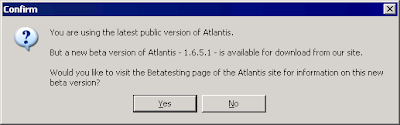
All the changes mentioned in this post apply to builds of Atlantis released after December 18, 2009.
But things were not that simple and convenient when it came to beta versions of Atlantis. Beta versions of Atlantis could only be updated manually. Interested end-users were supposed to make regular visits to the Atlantis Betatesting page, and download the new beta builds manually.
We have now simplified matters for our betatesters:
1) Individual beta builds of Atlantis always have a specific code number. That code number is displayed in the right topmost corner of the online Betatesting page:

But up to now that specific beta number was never displayed in the "Help | About..." window. Actually it was not even possible to tell when a given copy of Atlantis was beta.
The "Help | About..." window of Atlantis betas now displays these specific version numbers, and signals a beta version:

The Setup files of Atlantis beta versions now also display this information:

2) The "Help | Check for Updates..." dialog of Atlantis betas will allow you to upgrade to new beta builds of Atlantis:

Clicking "Yes" will allow you to upgrade your beta version of Atlantis without visiting the Betatesting page manually. You only need to follow the onscreen instructions.
3) Previously when the betatesting phase of a particular version of Atlantis was over, that version was released as a public version. But there was no automatic way to replace a beta version of Atlantis with the corresponding public version of Atlantis. Not anymore. The "Help | Check for Updates..." dialog of the beta versions now suggests such a move.
4) Finally, the "Help | Check for Updates..." dialog of public versions of Atlantis now informs you about any new beta versions of Atlantis:

All the changes mentioned in this post apply to builds of Atlantis released after December 18, 2009.
Thursday, December 17, 2009
Perfectionism in action
Many will find this trivial. It is a cosmetic improvement indeed which many would not even notice. But this post is meant to show that we do pay attention to details. Minor inconveniences are still inconveniences. Minor glitches are still glitches. No matter how small is a problem, it is always better to fix it than to live with it.
So what is that improvement? As you most probably know, when you place the mouse pointer over a hyperlink in a document of Atlantis, a popup hint is displayed with the hyperlink address. Previously, the popup hint slowly followed the mouse pointer as you moved the mouse pointer over the hyperlink:

Such "walking" hints served no actual purpose. In the next version of Atlantis, starting from Atlantis 1.6.5 currently under betatesting, these popup hints will remain at their initial location. Like this:

So what is that improvement? As you most probably know, when you place the mouse pointer over a hyperlink in a document of Atlantis, a popup hint is displayed with the hyperlink address. Previously, the popup hint slowly followed the mouse pointer as you moved the mouse pointer over the hyperlink:
Such "walking" hints served no actual purpose. In the next version of Atlantis, starting from Atlantis 1.6.5 currently under betatesting, these popup hints will remain at their initial location. Like this:
Friday, December 11, 2009
Document formats: Winter cleaning
Besides support for a new document format ODF, the upcoming version of Atlantis Word Processor 1.6.5 will also include changes to its import/export filters.
Atlantis previously offered two separate formats for MS Word DOC documents through its Open/Save dialogs:

Indeed there is a significant difference between the DOC format used by MS Word 6.0/95 and the DOC format of higher versions of MS Word starting Word 97. But since the DOC format of MS Word 6.0/95 is now 15 year old, and it is hardly ever required by users, we decided to merge the two DOC formats into one in the list of supported document types:

What does this actually mean to Atlantis users?
Atlantis will still be able to open any DOC document of MS Word 6.0 (or higher). But saving DOCs in the old format of MS Word 6.0/95 won’t be possible anymore. If you open a DOC file of older format in Atlantis, and resave it in Atlantis, it will automatically be saved in the newer DOC format of MS Word 97 (and higher).
Atlantis 1.6.5 will also show a minor improvement to the Save as eBook feature. Previous versions of Atlantis saved superscripted and subscripted texts to eBooks with vertical offset only, without reducing the font size of these super-/subscripted texts:

Atlantis 1.6.5 will now apply a reduced font size to super-/subscripted texts:

In this way, the resulting EPUB file will mimic the look of super-/subscripted texts from the original document in the best possible manner.
Atlantis previously offered two separate formats for MS Word DOC documents through its Open/Save dialogs:

Indeed there is a significant difference between the DOC format used by MS Word 6.0/95 and the DOC format of higher versions of MS Word starting Word 97. But since the DOC format of MS Word 6.0/95 is now 15 year old, and it is hardly ever required by users, we decided to merge the two DOC formats into one in the list of supported document types:

What does this actually mean to Atlantis users?
Atlantis will still be able to open any DOC document of MS Word 6.0 (or higher). But saving DOCs in the old format of MS Word 6.0/95 won’t be possible anymore. If you open a DOC file of older format in Atlantis, and resave it in Atlantis, it will automatically be saved in the newer DOC format of MS Word 97 (and higher).
Atlantis 1.6.5 will also show a minor improvement to the Save as eBook feature. Previous versions of Atlantis saved superscripted and subscripted texts to eBooks with vertical offset only, without reducing the font size of these super-/subscripted texts:

Atlantis 1.6.5 will now apply a reduced font size to super-/subscripted texts:

In this way, the resulting EPUB file will mimic the look of super-/subscripted texts from the original document in the best possible manner.
Wednesday, November 18, 2009
Open dashes vs Closed dashes
It is hard to find another punctuation mark in English language that has so many different uses and fuels so many debates among writers and philologists as dashes. So we are not going to start a discussion on the use of dashes. So much has already been said it would be hard to add anything new. If you are interested, Wikipedia has plenty of detailed information on the use of dashes.
But we still have information relevant to Atlantis. The new minor version of Atlantis Word Processor (– 1.6.4.3 –) currently under betatesting introduces a change in the way Atlantis handles dashes.
As you most probably know, Atlantis has two special symbols called "Short dash" (or "En dash") and "Long dash" (or "Em Dash"). They can be inserted using the "Insert | Symbol..." dialog:
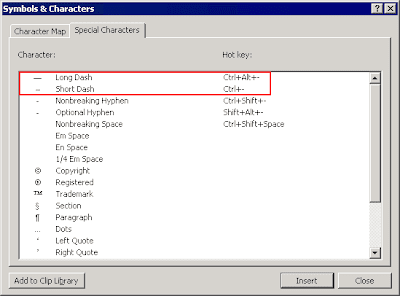
or by pressing the associated hot keys: Ctrl+Alt+– and Ctrl+-.
These dashes can also be inserted in your documents by AutoCorrect. For example, AutoCorrect will by default replace two hyphens (--) with an En dash on-the-fly, – as you type them.
As you know, Atlantis systematically adds missing spaces, or removes spare spaces before/after most punctuation signs according to the standard rules. But Atlantis also allows you to change these rules to suit your own preferences. When you press the "Rules..." button in the "Tools | AutoCorrect Options..." dialog:
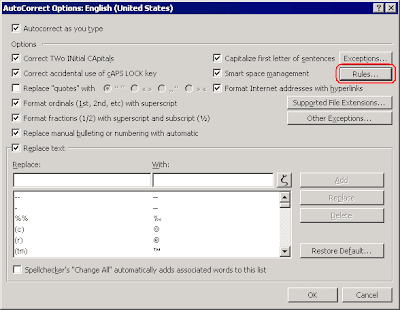
the "Smart Space Management" window is displayed where you can customize which punctuation signs require space before or after:
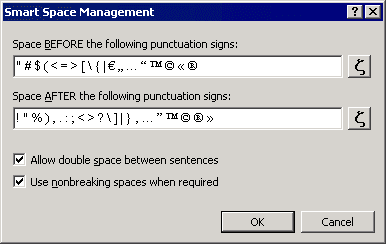
Now about dashes. They can be either "open" or "closed".
"Open" dashes have space characters around them, like this:
"Closed" dashes do not have spaces before and after them:
"Open" dashes was always the default option in Atlantis. By this we mean that Atlantis systematically added space characters around dashes if it found them missing. And the "Smart Space Management" dialog did not allow end-users to change this behavior and control spacing around dashes. In other words, "closed" dashes were not accepted by Atlantis. This has been corrected in the upcoming version. In Atlantis 1.6.4.3, you will be able to specify "closed" dashes as an accepted behavior by Atlantis. "Open" dashes will still be the default option on install. But you'll be able to remove dashes from the list of punctuation signs requiring space before and after if it suits you better. Simply select the dashes in the "Smart Space Management" window:
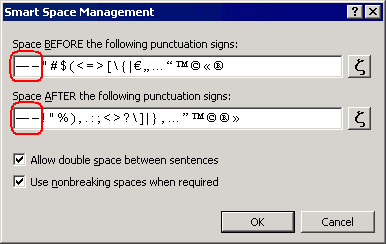
and press Del. After that, Atlantis won't attempt to add spaces around dashes if you don't type them in yourself.
As always, this latest beta version of Atlantis Word Processor is available from the Betatesting page.
But we still have information relevant to Atlantis. The new minor version of Atlantis Word Processor (– 1.6.4.3 –) currently under betatesting introduces a change in the way Atlantis handles dashes.
As you most probably know, Atlantis has two special symbols called "Short dash" (or "En dash") and "Long dash" (or "Em Dash"). They can be inserted using the "Insert | Symbol..." dialog:

or by pressing the associated hot keys: Ctrl+Alt+– and Ctrl+-.
These dashes can also be inserted in your documents by AutoCorrect. For example, AutoCorrect will by default replace two hyphens (--) with an En dash on-the-fly, – as you type them.
As you know, Atlantis systematically adds missing spaces, or removes spare spaces before/after most punctuation signs according to the standard rules. But Atlantis also allows you to change these rules to suit your own preferences. When you press the "Rules..." button in the "Tools | AutoCorrect Options..." dialog:

the "Smart Space Management" window is displayed where you can customize which punctuation signs require space before or after:

Now about dashes. They can be either "open" or "closed".
"Open" dashes have space characters around them, like this:
He was quick to declare victory — maybe too quick.
"Closed" dashes do not have spaces before and after them:
He was quick to declare victory—maybe too quick.
"Open" dashes was always the default option in Atlantis. By this we mean that Atlantis systematically added space characters around dashes if it found them missing. And the "Smart Space Management" dialog did not allow end-users to change this behavior and control spacing around dashes. In other words, "closed" dashes were not accepted by Atlantis. This has been corrected in the upcoming version. In Atlantis 1.6.4.3, you will be able to specify "closed" dashes as an accepted behavior by Atlantis. "Open" dashes will still be the default option on install. But you'll be able to remove dashes from the list of punctuation signs requiring space before and after if it suits you better. Simply select the dashes in the "Smart Space Management" window:

and press Del. After that, Atlantis won't attempt to add spaces around dashes if you don't type them in yourself.
As always, this latest beta version of Atlantis Word Processor is available from the Betatesting page.
Tuesday, October 27, 2009
eBook creation: still polishing
The Overlong sentences will not be the only new feature in the upcoming minor version of Atlantis 1.6.4.3. There will be a number of improvements to the Save as eBook feature as well:
1) Atlantis will save cover images for eBooks in a better way. There will be less blank space around cover images when viewed in eBook readers. For example, here is how the eBook.rtf template of Atlantis looks in Adobe Digital Editions when saved as eBook with different versions of Atlantis (click to enlarge):

2) Atlantis will divide the book's content into separate HTML files in a smarter way. It will try to reduce the number of HTML files within the ePub package. The book will be rendered by eBook readers with less unintended page breaks. If the source document is not very long, there will be no unintended page breaks at all.
3) Atlantis will automatically retrieve the author's surname from the content of the "Author" box of the "Save as eBook" window:

and generate a new metadata field within the "content.opf" file:

This "opf:file-as" field is used to sort books by author.
4) If your source document contains footnotes or endnotes, automatic numbers within notes of the eBook will be clickable:

Clicking these numbers will bring you to the corresponding note references within the main text of the eBook.
1) Atlantis will save cover images for eBooks in a better way. There will be less blank space around cover images when viewed in eBook readers. For example, here is how the eBook.rtf template of Atlantis looks in Adobe Digital Editions when saved as eBook with different versions of Atlantis (click to enlarge):

2) Atlantis will divide the book's content into separate HTML files in a smarter way. It will try to reduce the number of HTML files within the ePub package. The book will be rendered by eBook readers with less unintended page breaks. If the source document is not very long, there will be no unintended page breaks at all.
3) Atlantis will automatically retrieve the author's surname from the content of the "Author" box of the "Save as eBook" window:

and generate a new metadata field within the "content.opf" file:

This "opf:file-as" field is used to sort books by author.
4) If your source document contains footnotes or endnotes, automatic numbers within notes of the eBook will be clickable:

Clicking these numbers will bring you to the corresponding note references within the main text of the eBook.
Monday, October 19, 2009
"Delay, or not delay - that is the question"
If you have Atlantis Word Processor version 1.6.2.0 through 1.6.4.2, you probably noticed that Atlantis freezes for a few seconds (on slower computers for up to 10 seconds) after you start typing text. (By the way, you can find out the version of your Atlantis by choosing the "Help | About..." menu command.)
Some users don't see a problem with having this delay in Atlantis (it happens only once per session). But some were quite annoyed by it, especially those who have slower PCs.
So what causes this delay? Atlantis version 1.6.2.0 (and higher) has a big module dealing with the inflected forms of English words. This module is stored in a compressed form within the executable file of Atlantis. When Atlantis needs this module, it has to load and decompress a large amount of data. This takes time even on a fast system. Two features of Atlantis - Overused Words and Power Type - need information about inflected forms. When you start typing in Atlantis, the Power Type feature is launched, and Atlantis starts loading inflected forms. This is why there is a delay.
But we didn't want just to explain why you have this delay. We came up with a solution which will improve things significantly.
Any next version of Atlantis (1.6.4.3 or higher) won't decompress the module with inflected forms every time you launch Atlantis and start typing. It will do this only once after you install or upgrade Atlantis. Decompressed data will be saved to a special file under the home folder of Atlantis (don't be surprised if you find a new file with a .tmp extension there). After a restart, Atlantis would load this file in a fraction of second. So you could say bye-bye to the delay that annoyed you. Well, if it didn't annoy you, you could still say bye-bye to it. :)
Some users don't see a problem with having this delay in Atlantis (it happens only once per session). But some were quite annoyed by it, especially those who have slower PCs.
So what causes this delay? Atlantis version 1.6.2.0 (and higher) has a big module dealing with the inflected forms of English words. This module is stored in a compressed form within the executable file of Atlantis. When Atlantis needs this module, it has to load and decompress a large amount of data. This takes time even on a fast system. Two features of Atlantis - Overused Words and Power Type - need information about inflected forms. When you start typing in Atlantis, the Power Type feature is launched, and Atlantis starts loading inflected forms. This is why there is a delay.
But we didn't want just to explain why you have this delay. We came up with a solution which will improve things significantly.
Any next version of Atlantis (1.6.4.3 or higher) won't decompress the module with inflected forms every time you launch Atlantis and start typing. It will do this only once after you install or upgrade Atlantis. Decompressed data will be saved to a special file under the home folder of Atlantis (don't be surprised if you find a new file with a .tmp extension there). After a restart, Atlantis would load this file in a fraction of second. So you could say bye-bye to the delay that annoyed you. Well, if it didn't annoy you, you could still say bye-bye to it. :)
Subscribe to:
Posts (Atom)
